

 Back
Back





















10.5 Device Settings
Device settings
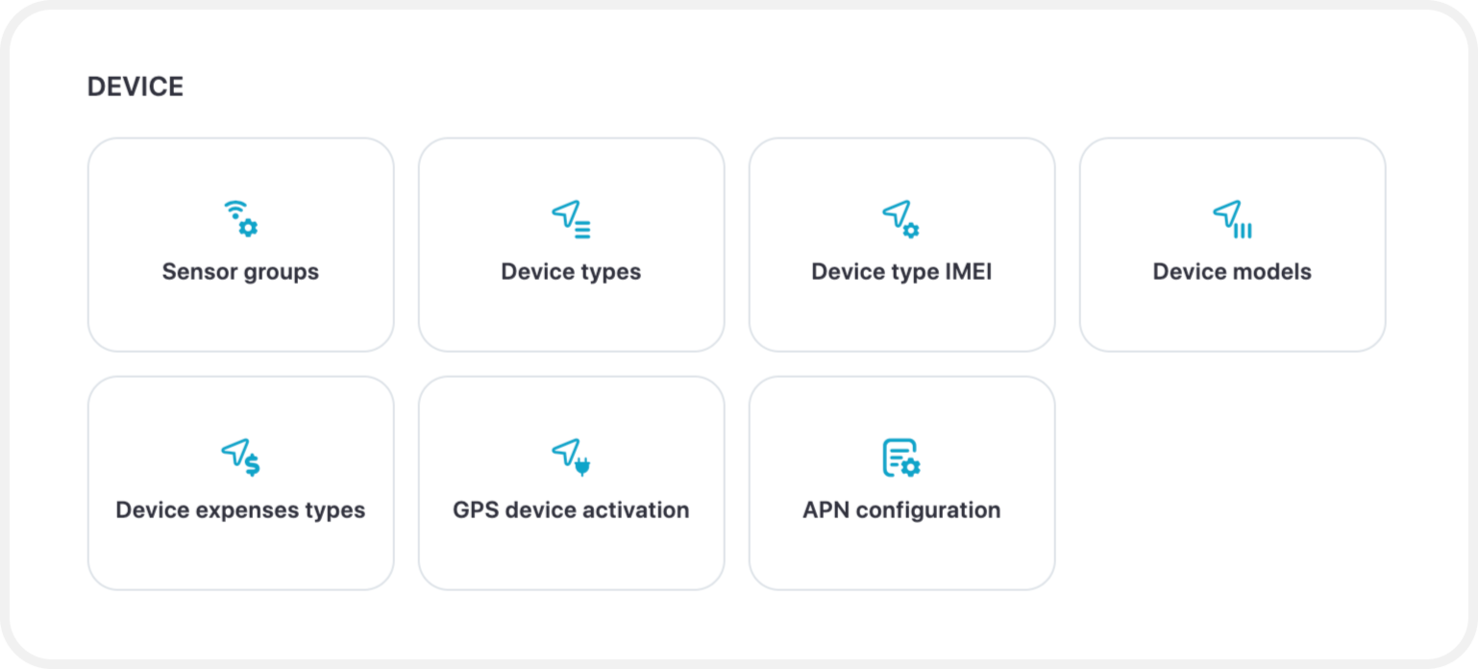
Sensor Groups
To create a sensor group navigate to Settings -> Device -> Sensor Groups.
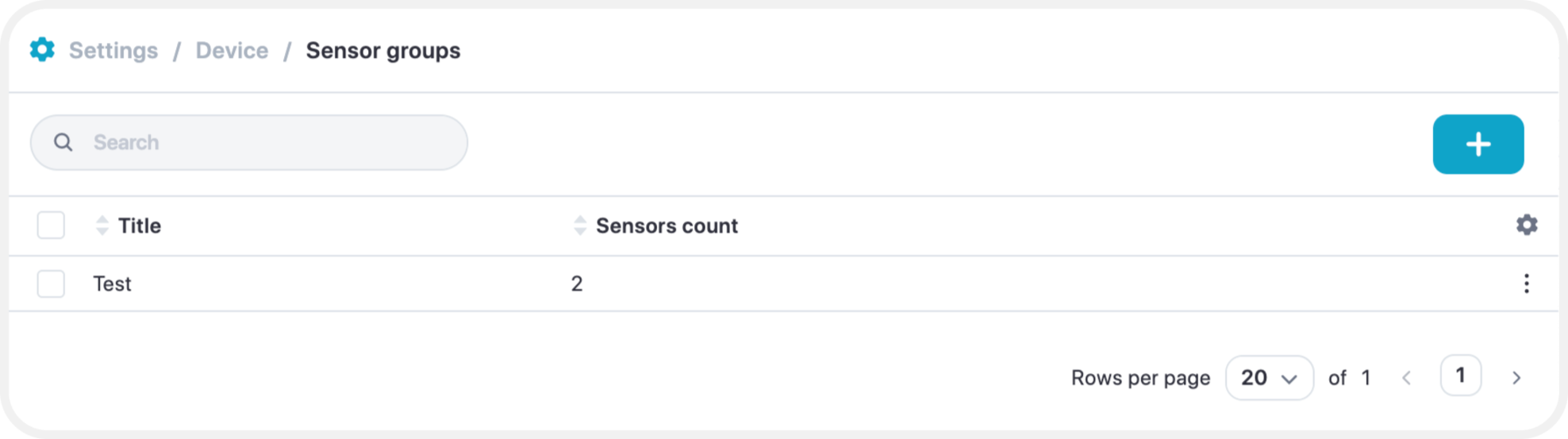
\
Device Expenses Types
Navigate to Settings -> device -> Device Expenses Types to be able to add an expense type for the device and click on the add button.
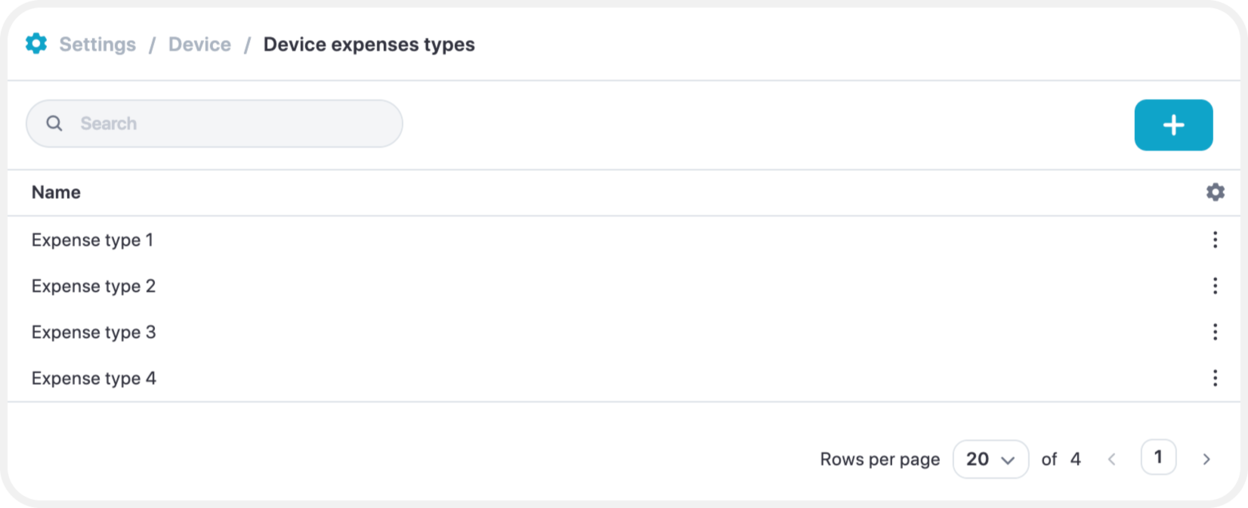
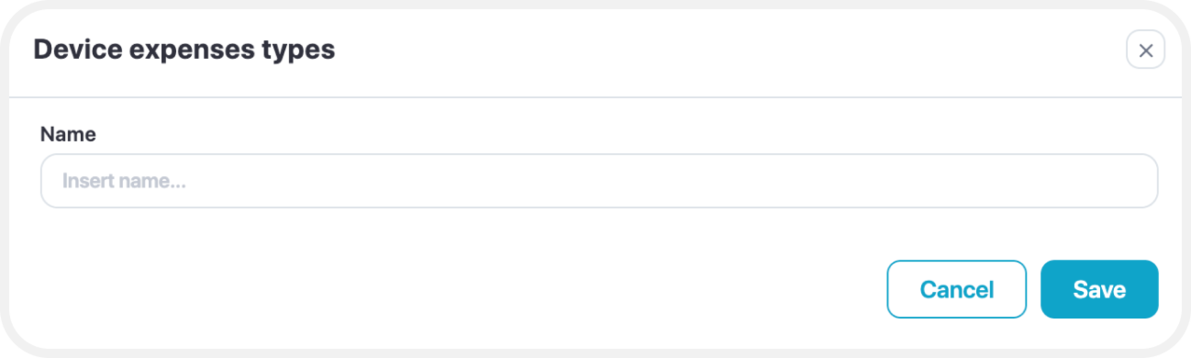
Enter the name of the expense type you wish to add and press “save”.
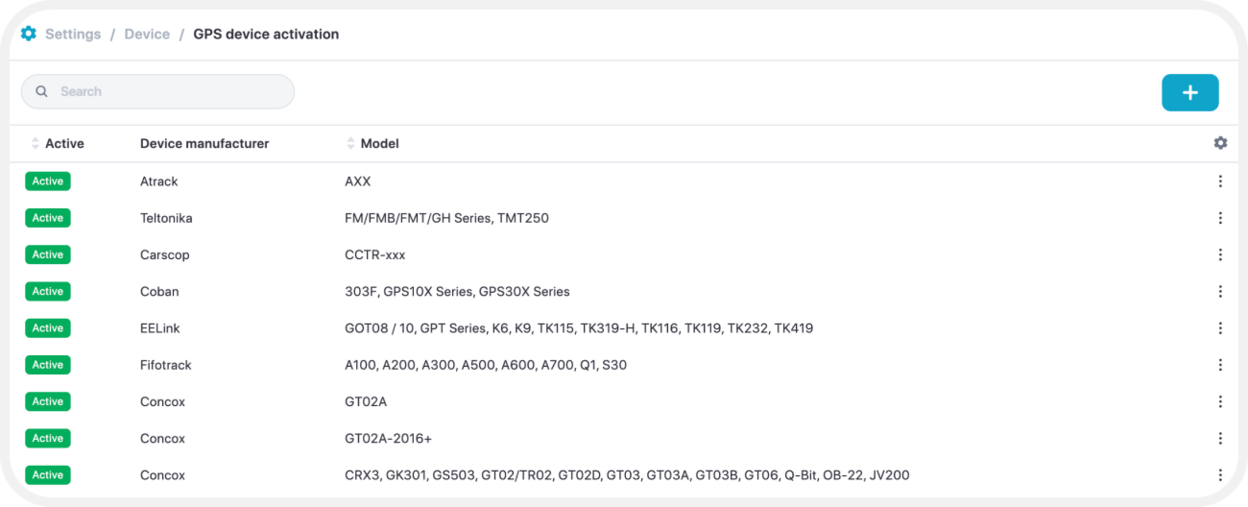
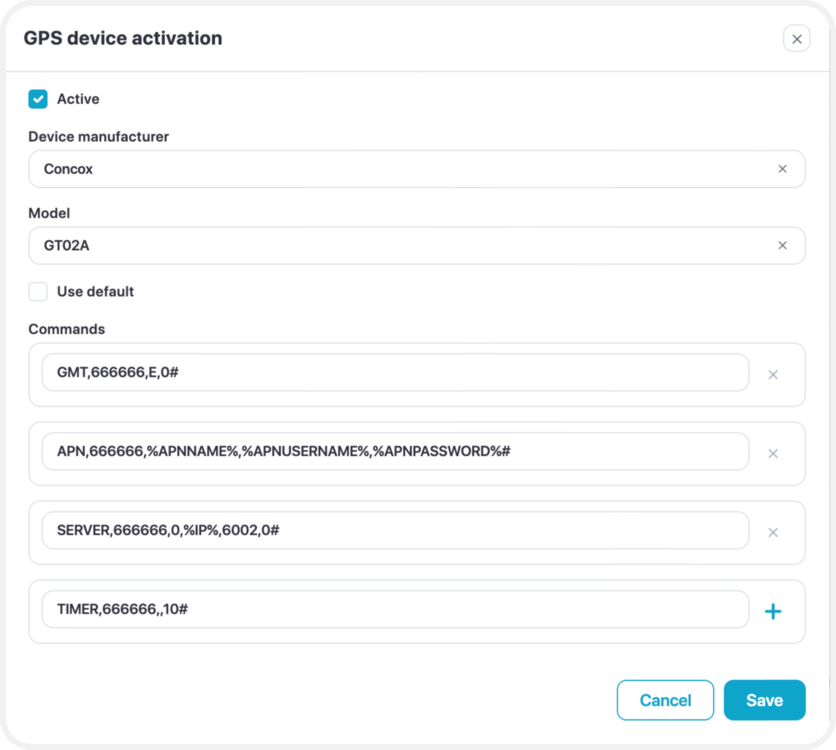
Within the menu, enter the manufacturer and the model of the device.
For the SMS commands, select the "+" icon and type in the required command to configure the device. If the device requires more than one command to be configured and in a specific order, press the "+" button again and another line for the commands will be added. Add as many command lines as necessary for the device. The order in which the commands will be sent is from top to bottom.
When adding the commands to the list, instead of using the actual APN names and IP addresses, include the variables as the system automatically recognizes the APN configurations and the IP address.
APN variables:
- %APNNAME% - This is the APN name of the SIM data provider.
- %APNUSERNAME%, %APNPASSWORD% - These are usernames and passwords for the APN. If the data carrier does not require login credentials, these will be sent blank by the system.
IP Address variable:
- %IP% - The system automatically inputs Your server IP address into the configuration.
Once the details are entered, select "Save" and the recently added manufacturer with the commands will be added to the list.
Managing APN Configuration
All supported SIM data carriers and their corresponding APN details are listed in the APN Configuration menu.
Adding a New APN Provider
To add a new provider:
- Navigate to the APN Configuration menu.
- Click the “+” icon on the right side of the menu.
Editing an Existing APN Configuration
If an APN configuration needs to be updated:
- Locate the provider in the list.
- Under the "Actions" column, click the gear icon to edit the settings.
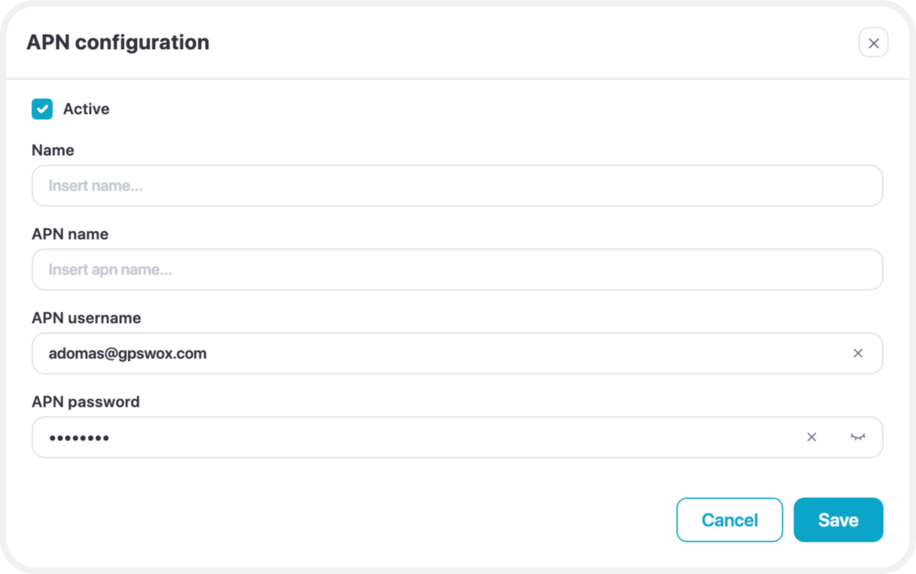
When the information is filled in, select "Save" and the data carrier with its APN details will be added to the list.